
Made it! badge
Why the Made it! badge is badass
- It's a quick visual reminder of what you’ve cooked.
- Find familiars fast, especially when searching.
- Build momentum with those satisfying little wins.
- See your plant-powered streak grow over time as badges are sprinkled across the portal.
- By checking that you made the recipes, all items will be saved to your Made folder.
How to apply the badge to recipes
When you finish a recipe, tap the checkbox to mark it as complete.

Or, if you're in a meal plan on the Meals tab, tap the check circle on the meal.

Once you do, you’ll see a new “Made it!” badge on that recipe and any component recipes you've marked as complete.

How to apply the badge to meal plans
If you complete all five recipes in a meal plan, you’ll unlock a special badge for the entire meal plan which will show in the search results and on the homepage. Bonus recipes are not required to make to earn the badge.
Easily find recipes and meal plans you made
Trying to remember a dish you made so you can make it again?
Head over to Search, then go to the Made tab.
You can scroll through the list until you find what you're looking for, or use the search bar and type in a few ingredients that you remember in the recipe to narrow results.
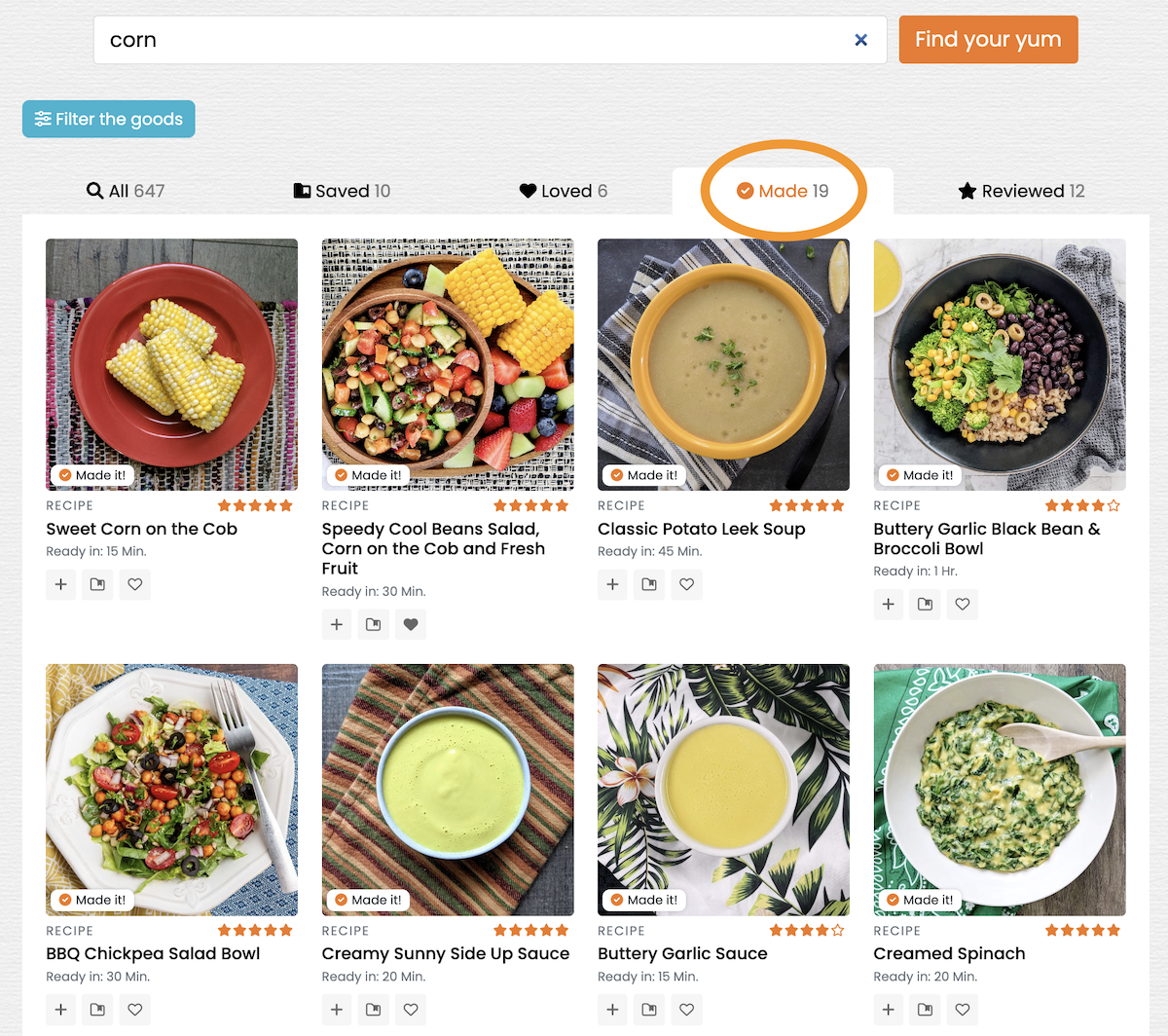
Also, recipes you’ve completed will display the “Made it!” badge, so you can quickly spot them across all search tabs, recipes in a collection, etc. The same logic applies to meal plans.
I accidentally marked a recipe as complete that I didn't make. How do I reverse it?
No worries! Sometimes our fingers get as excited as our taste buds. You can remove the badge by doing the following:
- Go to your Cooking Journal
- Scroll down
- Tap the trash icon on the lower right
- Remove any recipes you no longer want marked as complete / made by tapping the X to the right of the individual recipe entry
- Tap Yes, delete from the confirmation window
- Repeat if needed
Resetting a meal plan or a recipe does not remove the Made it! badge.
Keep making those plants and checking those boxes. 🧡 ✅